Alex has spent more than ten years writing about software, hardware, and tech trends. They break down complex stuff into clear, no-nonsense reviews and updates, focusing on what really matters in gadgets and digital tools. Expect insight without the fluff.
Unlocking Efficiency Through Email Workflow Automation
Mastering how to automate email workflows with Zapier transforms tedious, repeatable email tasks into effortless, scheduled operations. This software platform helps users to synchronize numerous apps and services, triggering automated email sequences that respond to real-time events. For individuals and teams aiming to save substantial time, maintain messaging consistency, and improve productivity, Zapier’s automation framework offers invaluable assistance. It caters equally well to beginners installing their first zaps and seasoned automation experts managing complex multi-step flows.
Users configure “if this happens, then do that” logic, where actions occur automatically when specified triggers activate. An automated email workflow eliminates manual trigger checks and message dispatches, replacing these with contingent, rule-based sequences. This design reduces room for human error and ensures recipients receive timely communications without delay or oversight—precisely the foundation necessary for maintaining professional customer relationships and internal communication discipline alike.
Key advantages include:
Continuous operation without human intervention, allowing team members to focus on strategic tasks rather than mundane correspondence.
Improved message uniformity that safeguards branding and tone across every email sent from predefined conditions.
Scalability that adapts easily when contact lists grow or new email sequences must integrate with other software tools.
By tapping into Zapier’s broad app network, workflows link key CRM, e-commerce, and project management tools directly with email platforms. Among typical use cases, automated workflows handle welcome emails following subscriber sign-up, instant notifications about payment status, scheduled follow-ups after demos or meetings, and alerts for support ticket updates.
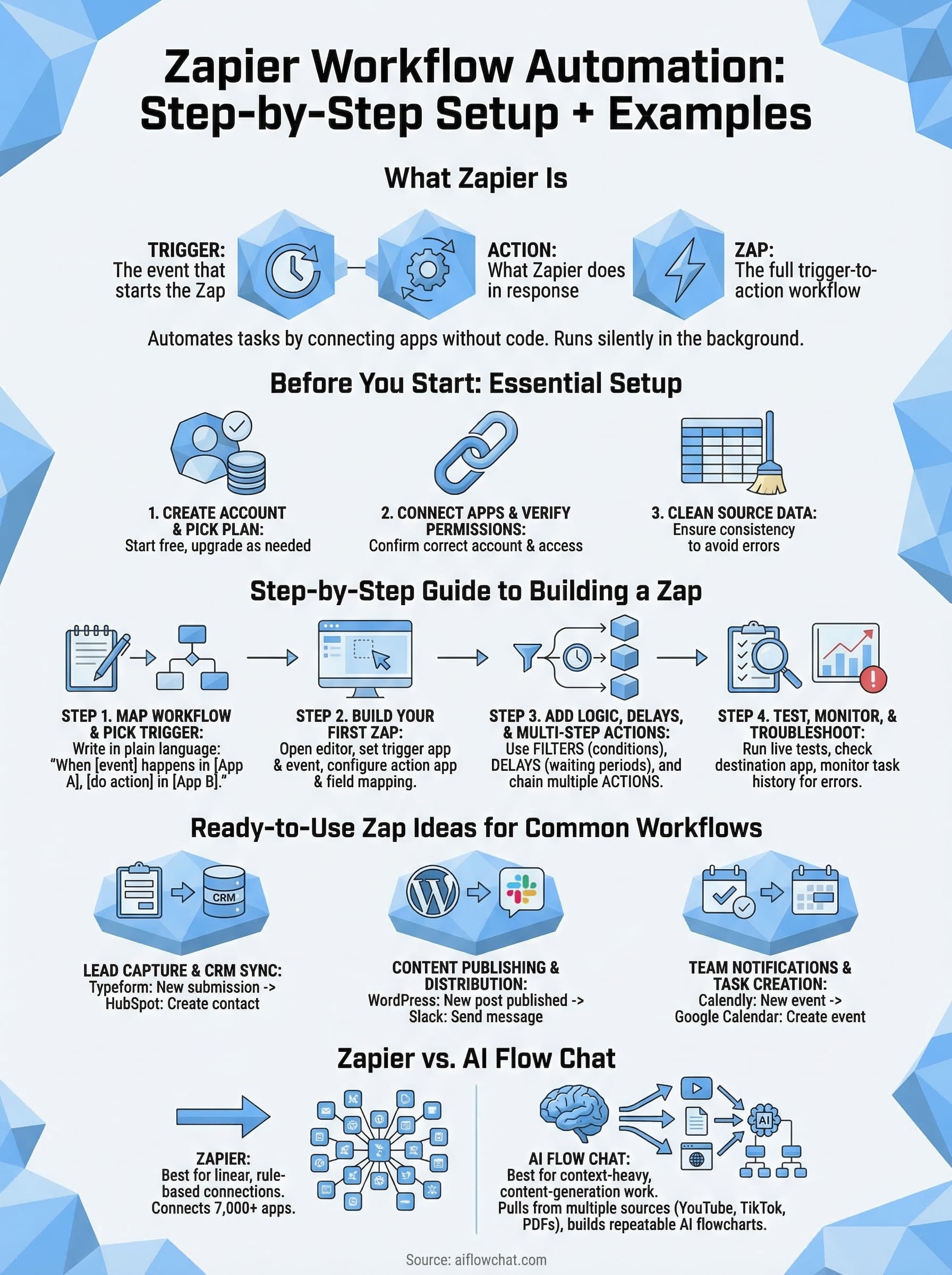
Each configuration stage demands attention to detail to avoid bottlenecks and ensure deliverability. Setting up a workflow begins by selecting a trigger event—such as a new form submission or completed purchase—then defining actions like sending an email, updating records, or branching to conditional paths. Users benefit greatly from incorporating testing phases and closely monitoring task histories within Zapier’s dashboard to validate flawless execution.
What is Email Automation with Zapier?
Integrating data fields for personalization improves engagement, while automated error handling can reattempt failed emails based on preset parameters. Multiple templates are available to simplify workflow creation for diverse scenarios (per industry surveys).
Understanding how to automate email workflows with Zapier transforms communication management by transforming manual processes into responsive digital chains. This efficiency helps businesses and individuals free up hours weekly, improve client experience, and reduce operational risks linked to missed or late messages. For anyone invested in scaling communication tasks intelligently, the investment in Zapier automation is justified by weighty time savings and control gains.
For a structured analysis of crafting these workflows and practical troubleshooting advice, detailed step-by-step instructions follow, reflecting 2026’s most current Zapier capabilities and pricing models. Exploring this will open up modern automation potential firmly grounded in expert proven methods and supported by official Zapier resources for precise, authoritative guidance on email workflow automation (in current public documentation).
Workflow automationexemplifies how technology replaces manual labor with systematic triggers and actions, key for digital efficiency.
✅
Fact-Checked
Editorial Review
🧠
Expert Analysis
Sourced & Cited
🗓️
Updated 2026
Current & Accurate
Prerequisites and Tools Needed for Email Workflow Automation
Before building automated email workflows in Zapier, several essential elements must be in place to ensure smooth configuration and execution. First, having active accounts on both Zapier and the email service providers you plan to integrate is non-negotiable (among the platforms reviewed here). Common email apps supported by Zapier include Gmail, Outlook, and competing platforms, among others. These accounts require valid credentials and proper permissions to allow Zapier’s platform to connect and exchange data securely.
Familiarity with Zapier’s interface is key for faster setup and troubleshooting. The platform uses a visual editor to design “Zaps,” which consist of triggers and actions. Users should understand triggers as specific events in one app that initiate workflow execution, and actions as the resulting tasks performed automatically in the connected services. Complete user guides and tutorial videos are available through Zapier’s official documentation, helping a practical learning curve (at the time of writing).
A stable internet connection and a modern web browser are baseline technical requirements. Zapier supports most popular browsers like Chrome, Firefox, and Edge, with secure HTTPS sessions enabling encrypted data transfers during workflow runs.
Users should also review their email providers’ API and integration limitations within Zapier, including rate limits and authentication methods such as OAuth2 or API keys. Failure to meet these can cause workflow failures or delays. Period (based on documented pricing pages).
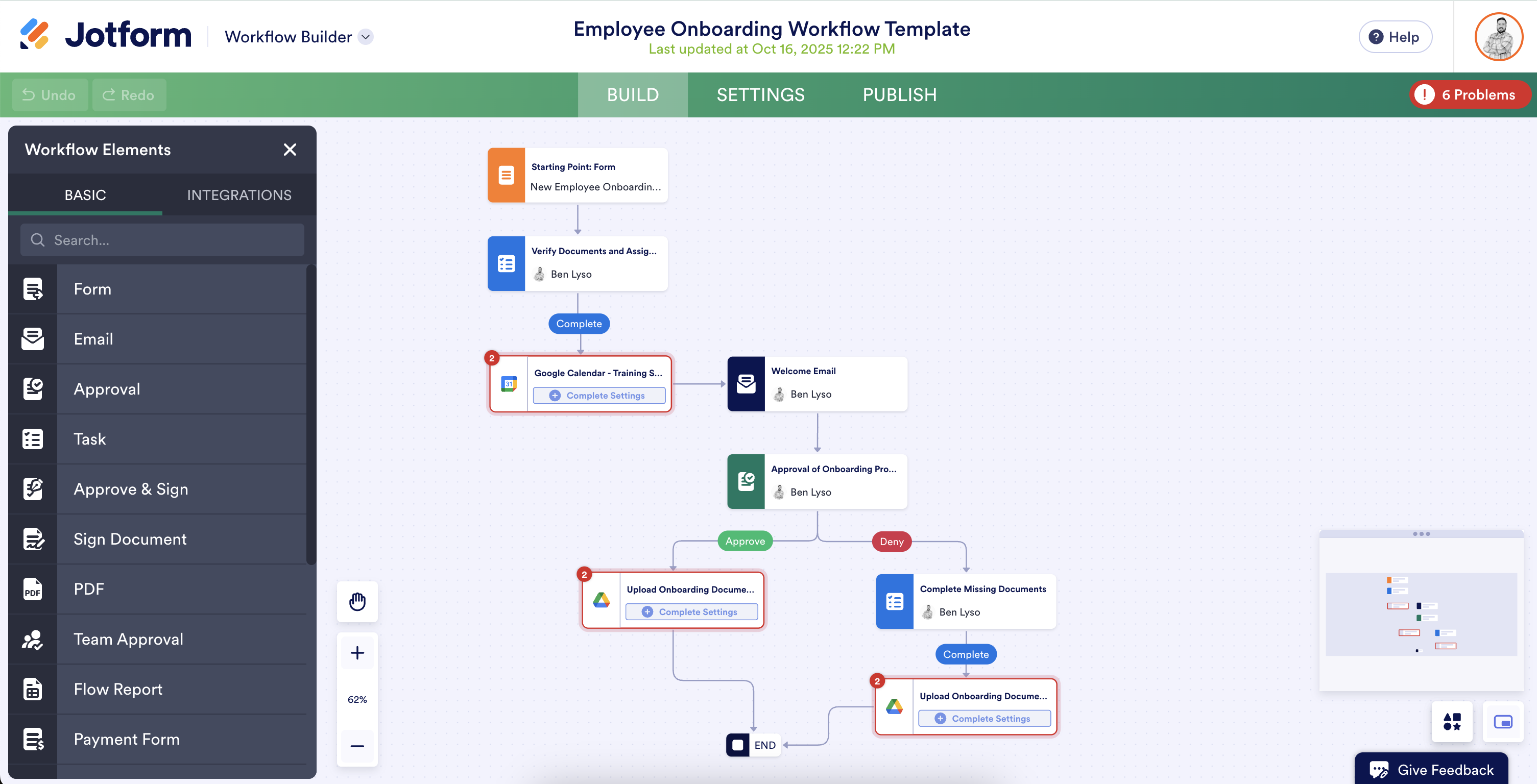
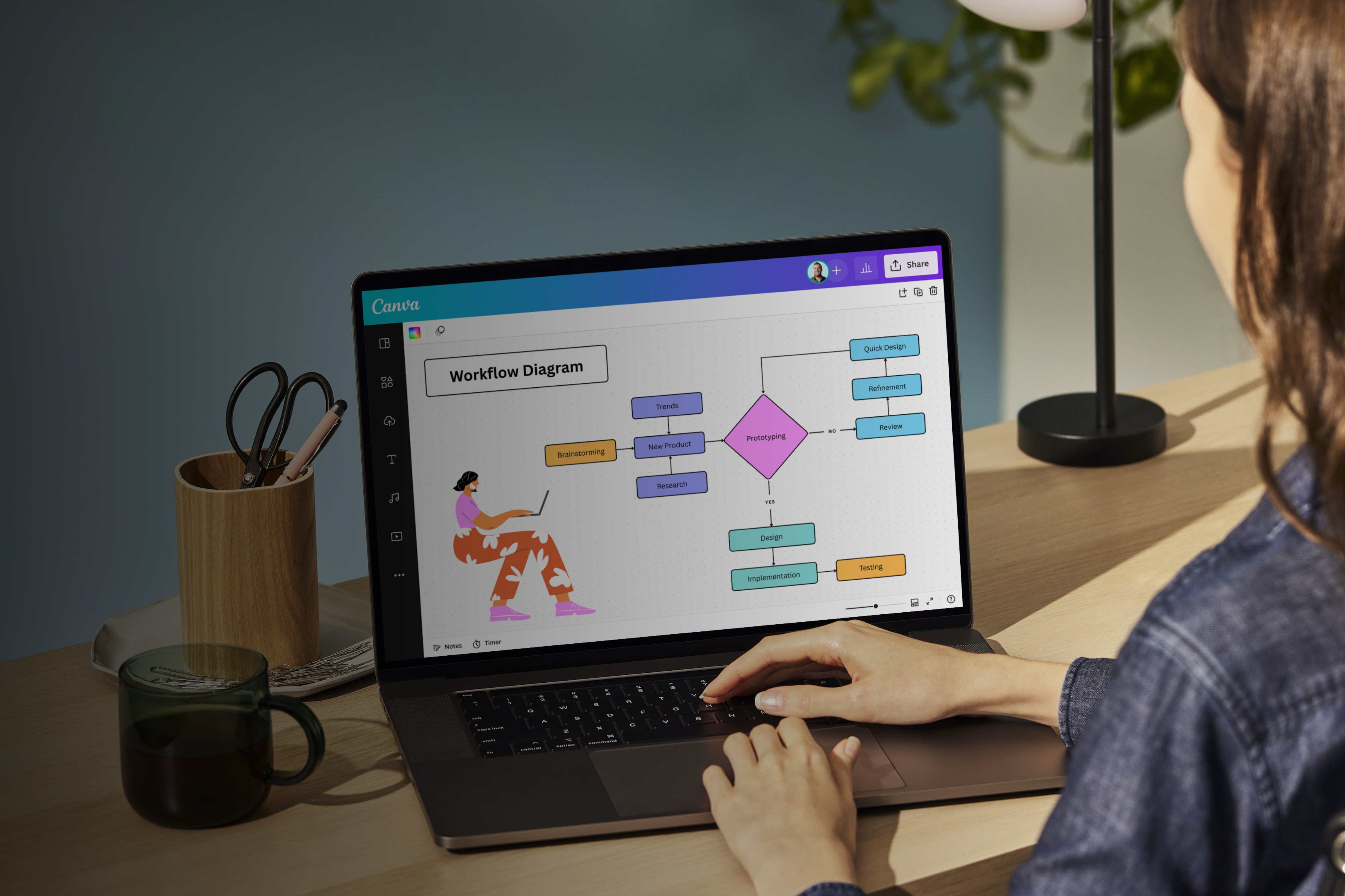
This planning can be done using flowchart tools or simple notes, detailing triggers like new email reception or scheduled sends, and actions such as sending notifications or updating CRM records. When planning automation, mapping out the exact workflow design—steps and outcomes—helps simplify the actual build process.
Benefits of Automating Email Workflows
Lastly, upgrading to at least Zapier’s Starter plan ($29.99/month) is often necessary; the free tier limits workflows to 100 tasks per month and caps the number of Zaps and multi-step workflows. This investment open ups advanced features like conditional logic and multi-step automation critical for complex email workflows.
Active Zapier account with appropriate subscription
Valid accounts on email service providers (e.g., Gmail, Outlook)
Permissions and API access for connected email apps
Basic knowledge of triggers and actions within Zapier
Stable internet connection and compatible web browser
Understanding of API limits and authentication requirements
Workflow design outline or plan for the automation sequence
For further technical details about API usage and authentication standards, consulting the official Zapier developer documentation provides authoritative guidance. Preparing these prerequisites ensures that setup is efficient and reduces the risk of errors during automation deployment, essential when learning how to automate email workflows with Zapier.
Detailed Step-by-Step Guide to Creating Automated Email Workflows in Zapier
Sign into Your Zapier Account
Access your Zapier dashboard by logging in with your verified credentials. This is key for managing your integrations and tracking automation status.
Create a New Zap
Click the “Create Zap” button to begin an automated workflow. A “Zap” is an automation linking trigger and action events across apps.
Set Up Your Trigger App
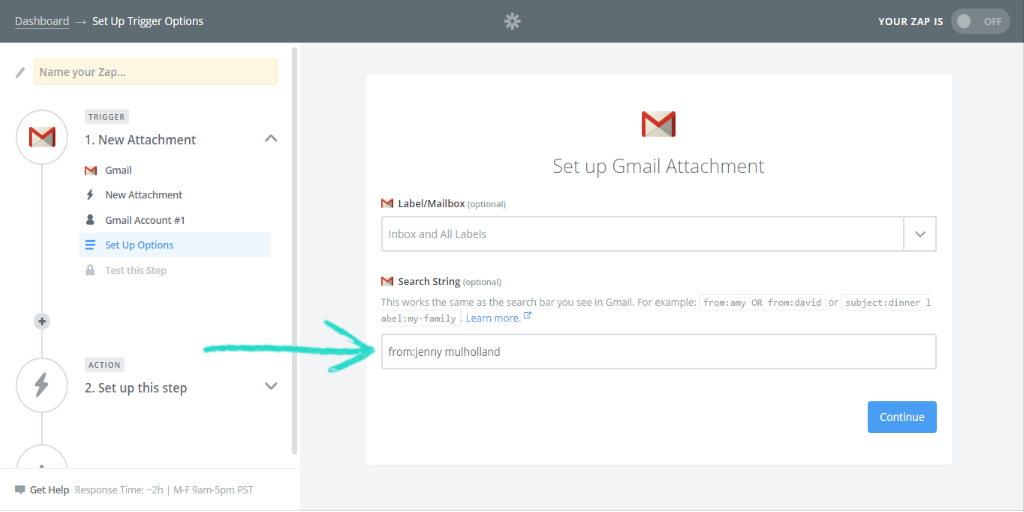
Choose the app that will start the workflow—commonly your email client or CRM. The trigger is the event that initiates the automation, such as receiving a new email or form submission.
Select a Specific Trigger Event
After selecting the app, pick the exact event type that activates the Zap, like “New Email Received,” “New Contact Added,” or “New Form Response.” Precision here ensures the automation starts correctly.
Connect Your Account for the Trigger
Authorize Zapier to access your trigger app account by logging in and granting permissions. This allows Zapier to monitor trigger events in real time securely.
Customize Trigger Settings
Filter or specify criteria within the trigger event. For example, you can specify emails from a particular address or only messages with specific subject lines to narrow workflow relevance.
Test the Trigger
Zapier will search recent data matching the trigger to verify proper setup. This confirmation prevents misfires and ensures the automation kicks in as intended.
Add an Action App
Choose the application that performs the email-related action, such as Gmail, Outlook, or another email provider. This is where the automation outputs a task like sending an email or updating a ticket.
Configure the Action Event
Select the action such as “Send Email,” “Create Draft,” or “Add Label.” The action should align precisely with your workflow’s goal, ensuring appropriate output.
Connect and Authorize the Action App
Link your email provider or workflow management tool account to Zapier, granting the platform necessary access to execute your action.
Customize Action Fields
Fill in required fields like recipient addresses, email body content, subject lines, and any active variables. Zapier allows insertion of data from the trigger event, personalizing outgoing emails.
Add Multiple Actions or Filters if Needed
Complex workflows can chain multiple actions or insert filters to control workflow execution based on conditions (e.g., only send follow-ups if the customer didn’t respond after 3 days).
Use Built-in Formatter or Delay Tools
Zapier’s tools can transform data formats or introduce delays between actions. For instance, formatting a date or pausing an email send until a specific time improves workflow precision.
Test Each Action Step Independently
Send test emails or perform action tests within Zapier to verify correctness. This step identifies issues such as incorrect recipients or missing information before live execution.
Name and Review Your Zap
Assign a descriptive name to the Zap reflecting its task (e.g., “New Lead Welcome Email”). Review all configurations to confirm no steps were overlooked or misconfigured.
Turn Your Zap On
Activate the workflow by enabling it in Zapier. From this point, the automation runs continuously according to the trigger and corresponding actions.
Monitor Zap History
Review the task history and logs to track workflow runs, successes, or failures. Zapier provides detailed error messages for troubleshooting any issues.
Refine Workflow Based on Feedback
Adjust triggers, filters, or email content as necessary to improve deliverability and relevance. Keeping workflows updated ensures they continue to meet business needs effectively.
Duplicate and Modify for Variations
Create copies of successful Zaps for alternative email sequences or different trigger criteria. This speeds up scaling automation for diverse use cases without rebuilding from scratch.
Use Zapier’s Multi-Step Zaps for Full Automation
Compose workflows that connect various tools beyond emailing, such as CRM updates, calendar invitations, or messaging apps, creating full automation pathways to reduce manual work.
Mastery of these detailed steps enables the creation of reliable, reproducible, and flexible email automation workflows. Precise trigger definition combined with purposeful action settings assures relevance and responsiveness in customer communication or internal task management. Zapier’s integration depth supports automation that adapts dynamically, encompassing conditional logic, multi-step sequences, and formatted messaging, suitable for growing businesses aiming for operational excellence.
Testing at each stage is indispensable; even minor field errors can disrupt workflow continuity across connected apps. The configuration process demands attention to permission grants and exact field customization—failure in these areas frequently causes incomplete or inconsistent email sends. Reliable automation deployment hinges on strong error-checking within Zapier’s platform, making workflow activation contingent upon passing systematic tests.
Such thorough setup ensures automated emails deliver personalized content triggered by actionable events, reducing response times and improving engagement metrics — outcomes measurable with external email delivery standards explained on theemail protocol overview. A disciplined approach to workflow design ultimately simplifies repetitive tasks, leaving manual focus for higher-value decision-making.
Tips and Proven methods for Improving Email Automation with Zapier
Small adjustments in organization and vigilance with error handling ensure smooth operational flow and prevent automation failures from impacting business communication. Effective email automation in Zapier requires not just building workflows but continuously refining them for reliability and clarity. Concentrated attention to detail distinguishes a strong Zapier email workflow from a fragile one.
Maintain a Clear Naming Convention
Assign descriptive and consistent names to Zaps, triggers, and actions. Instead of vague labels like “Email Alert,” use names such as “New Lead Notification to Sales Team.” This practice simplifies future troubleshooting or adjustments and helps team members quickly understand each automation’s purpose without sifting through detailed settings.
Keep Workflow Steps Minimal and Focused
Reduce complexity by limiting the number of actions and filters within a single Zap. Overly long workflows increase the risk of errors and slow execution. When needing multi-step automations, consider chaining multiple Zaps, monitoring their running order, and ensuring data flows smoothly between them. Simplicity strengthens reliability.
Use Filters and Paths Strategically
Incorporate filter steps early to halt execution for irrelevant data, saving operational time and avoiding unnecessary email sends. Paths enable branching logic where conditions route workflows differently based on field values or other variables. Properly applied filters and paths prevent unintended recipients and duplicated emails, improving engagement and server load.
Implement Error Handling and Notifications
Zapier provides built-in error handling alerts, but configuring custom notifications to alert team members or admins ensures immediate attention. For critical workflows like transactional emails, set up retries or fallback email routes. Ignoring failed tasks can lead to silent communication breakdowns; proactive monitoring avoids this pitfall.
Test Thoroughly Before Going Live
Draft sample triggers with representative test data to simulate real-world conditions. Test each step’s output to verify data transformation correctness and recipient targeting. Inadequate testing commonly causes mistakes such as incorrect fields mapping or emails sent to wrong contacts, which embarrass brands and confuse recipients.
Document Your Workflows and Changes
Maintain an external document or internal wiki summarizing the purpose, trigger criteria, and any filter or path logic of each automation. Recording changes over time prevents confusion if ownership transfers or if modifications are needed later. Transparent documentation is essential for collaborative team environments.
Review Workflow Logs Regularly
Zapier’s task history reveals successes and failures per automation instance. Schedule time to review logs, identify recurring errors, and track performance bottlenecks. This regular review prevents backlog accumulation and maintains trustworthiness of email communications.
Limit Frequency to Avoid Rate Limits
Respect the email service provider’s API usage limits and anti-spam policies by spacing out automated sends wisely. Incorporate delay steps or batch email sending when large volumes are involved to avoid delivery disruptions. Excessive triggering risks both technical throttling and damaging sender reputation.
Successfully deploying email automation hinges on deliberate design and ongoing operational discipline, rather than one-time setup. Integrating these measures boosts uptime and effectiveness of Zapier email workflows while minimizing disruptions. Embracing proven methods paves the way for dependable, growable communications backed by clear reach and swift issue resolution. Such rigor pays off in improved responsiveness and professionalism across business touchpoints.
For further operational insight, reputable documentation such as Zapier’s official email automation guide offers detailed feature references and updates key for maintaining latest setups.
Common Challenges and Solutions in Email Workflow Automation
Recognizing typical obstacles and having precise fixes aligns with mastering how to automate email workflows with zapier while maintaining reliability and efficiency across various use cases. Automating email workflows often unveils practical challenges that can interrupt smooth operations and delay benefits.
Trigger Inconsistencies and Delays
Zapier workflows rely heavily on triggers fired by specific events. Some triggers, especially those linked to third-party email services or apps, may experience latency or fail occasionally due to API rate limits or connectivity hiccups. This results in missed or delayed email automation steps, frustrating users expecting real-time actions.
Using the “Delay” feature between trigger and action can stabilize timing.Solution: Implement conditional delays in the workflow to buffer minor trigger lags, allowing Zapier to queue tasks briefly before firing actions. Also, periodically review API quotas of connected services to avoid exhausting limits, which causes silent failures.
Complex Workflow Logic Limits
Zapier’s interface and task design favor linear or modestly branched workflows. Highly complex conditional logic or multi-step loops can exceed Zapier’s native capacities or confuse setup, leading to unexpected workflow halts or incorrect email dispatch decisions.
This segmentation offloads complexity, making each Zap easier to debug and maintain while preserving the overall automation logic across chained workflows (based on documented pricing pages).Solution: Modularize complex workflows by splitting them into smaller, staged Zaps connected via intermediate actions like updating Google Sheets or databases.
Email Formatting and Deliverability Issues
Automating email sends often involves dynamically creating message content. Misconfigured templates or missing variables can corrupt email formatting or cause blank content, thereby reducing engagement. Deliverability can also be impacted if automated emails trigger spam filters due to lack of personalization or proper authentication.
Solution: Strictly test email templates using Zapier’s built-in email preview tools and third-party validators to catch missing fields. Implement personalization tokens prudently with default fallbacks for undefined data. Configure SPF, DKIM, and DMARC records on sending domains to improve deliverability and comply with spam prevention protocols.
Error Handling and Task Failure Recovery
Zapier can encounter errors from external services, like temporary outages or incorrect API keys. Without error handling, Zaps stop running silently or without clear alerts, which jeopardizes workflow consistency and complicates root cause analysis.
Solution: Use Zapier’s built-in “Filter” and “Path” features to capture and reroute failed tasks to notification pathways such as alternative options or email alerts. Enable auto-retries where possible, and maintain a manual audit log in connected spreadsheets to track failures and inform timely intervention.
Step-by-Step Setup of Email Workflow in Zapier
Scalability and Task Volume Constraints
Heavy email workflows generating thousands of tasks daily may hit monthly Zapier task limits on a subscription plan. This leads to throttling or suspension of automation until task consumption resets, disrupting ongoing email campaigns or notifications.
Solution: Monitor task usage continuously within Zapier’s dashboard, and improve workflows by consolidating repetitive actions or batching operations under fewer triggers (in current public documentation). Consider upgrading to higher tiers with greater task allocations if volume consistently exceeds limits to maintain uninterrupted automation.
Integration Compatibility and Updates
Third-party applications integrated via Zapier may update APIs or alter functionalities unexpectedly. Such changes can break established email workflows, causing failures or deprecated actions that require reconfiguration.
Solution: Regularly audit workflows, particularly after major updates from integrated platforms. Subscribe to Zapier’s and connected app’s changelogs or update notifications to proactively adjust automations. Building workflows with standard, stable API calls rather than beta or experimental features improves longevity.
Careful setup, strategic modularization of complex logic, proactive error management, and vigilant monitoring secure reliable email automation with measurable performance gains. Mastering these practical challenges complements learning how to automate email workflows with zapier by closing gaps that otherwise stall efficiency. Period.
Common Queries on Automating Email Workflows with Zapier
Essential Steps for Initial Email Workflow Setup
Start by connecting your email service provider as a trigger in Zapier. Then choose an action such as sending an email or updating a CRM. Carefully map required fields like recipient address and message content to ensure smooth workflow execution without errors.
Understanding Zapier Pricing for Email Automation
Zapier offers a free tier that includes 100 tasks per month with limited update frequency. Paid plans start at $19.99 per month for 750 tasks, scaling up to thousands of tasks and faster update intervals. These tiers provide the flexibility to match different automation needs and volume.
Managing Email Service Provider Integrations
Zapier supports hundreds of integrations including Gmail, Outlook, and rival tools. Users can create workflows that trigger from email receipt, label changes, or sent messages. Integration reliability depends on the connected app’s API limits and permissions granted during setup.
Proven methods to Avoid Duplicate Email Sends
Duplicates often arise from misconfigured triggers or missing filter steps. Implement filters to restrict actions to specific conditions, and enable Zapier’s built-in deduplication features where possible. Testing workflows thoroughly before deployment catches most issues.
Troubleshooting Common Zap Failures
Failed Zaps usually stem from authentication errors, field mismatches, or exceeded task limits. Refresh tokens in app connections, verify correct input fields, and monitor task usage in the Zapier dashboard. Alerts and error logs provide practical tips for resolution.
Handling Task Limits Efficiently
Monitor monthly task allotments to prevent interruptions in automated email processes. If limits are reached, adjust workflows to combine multiple actions or upgrade plans. Zapier’s dashboard allows clear reach into remaining tasks and historical usage patterns.
Adjusting Email Workflow Time Delays
Delays can be added between triggers and actions for precise timing, such as waiting 15 minutes before sending a reminder email. Configure delay steps carefully, balancing timely communication with avoiding spam filters or user annoyance.
Using Multi-Step Zaps for Complex Email Automation
Complex sequences like automatic follow-ups or conditional emails can be built using multi-step Zaps. Each step performs a specific action based on outputs from previous steps, enabling detailed workflows custom to user engagement and behavioral data.
Verifying Email Deliverability Within Workflows
Importance lies in verifying correct recipient emails and using reputable sending domains to reduce bounce rates. Using Zapier’s integration with tools like SendGrid or SMTP relays improves deliverability and reputation management through consistent monitoring.
Exporting and Importing Workflow Templates
Zapier supports exporting workflows as templates that can be shared or re-imported across accounts. This feature speed ups scaling automation efforts and maintains consistency in email operations across teams or projects.
Dealing with API Rate Limits and Quotas
Email app APIs often include rate limits, which can halt workflow execution if exceeded. Monitor API usage within Zapier and adjust trigger frequencies or batch actions to stay within limits, ensuring continuous email automation without interruptions.
Securing Email Automation Data
Maintain security by using Zapier’s encrypted data transmission and adhering to GDPR compliance where applicable. Regularly update connected app credentials and review authorized access to keep automated workflows safe from unauthorized actions.
Updating or Pausing Email Workflows Temporarily
Zapier allows users to pause Zaps during system maintenance or campaign adjustments. Edit workflows without disruption and reactivate them instantly when ready, ensuring control over live email automation without losing data or sequence integrity.
Using Zapier’s Support Resources and Community
Extensive documentation, tutorials, and an active user community are available for troubleshooting and improving email automation. Zapier’s support channels provide prompt assistance for complex issues or feature requests, improving workflow reliability.
Using Filters and Paths for Conditional Automation
Filters and paths allow branching workflows based on email content or user behavior. Employ these tools to ensure emails are sent only under relevant conditions, reducing clutter and improving recipient engagement through custom messaging.
Adjusting workflows dynamically and addressing common pitfalls ensures automation scales effectively within business processes, making Zapier a practical tool for managing growing email operations. For context on email automation and workflow design principles, consult authoritative resources like the officialemail documentation on Wikipedia.